Fix a QR Code That Won't Scan or Opens the Wrong Menu
Troubleshoot a QR code that won't scan or opens a blank or wrong menu: reprint at adequate size and contrast, check the location, and verify the public link.
Your QR code encodes one thing: your location's public menu URL. When a code won't scan or opens the wrong page, the problem is almost always the print quality, the location you generated it from, or the URL slug, not the menu itself. Work through the checks below in order.
Reprint at an adequate size and contrast
Most scan failures come down to print quality. Download the PNG 2048 file for printing, which stays crisp up to roughly 25 cm wide at 200+ DPI, and avoid resizing a small image larger. Keep the code dark navy on a plain white background for the highest contrast across phone cameras, and leave at least 1 cm of clear space (a "quiet zone") around all four sides so the camera can lock onto the pattern.
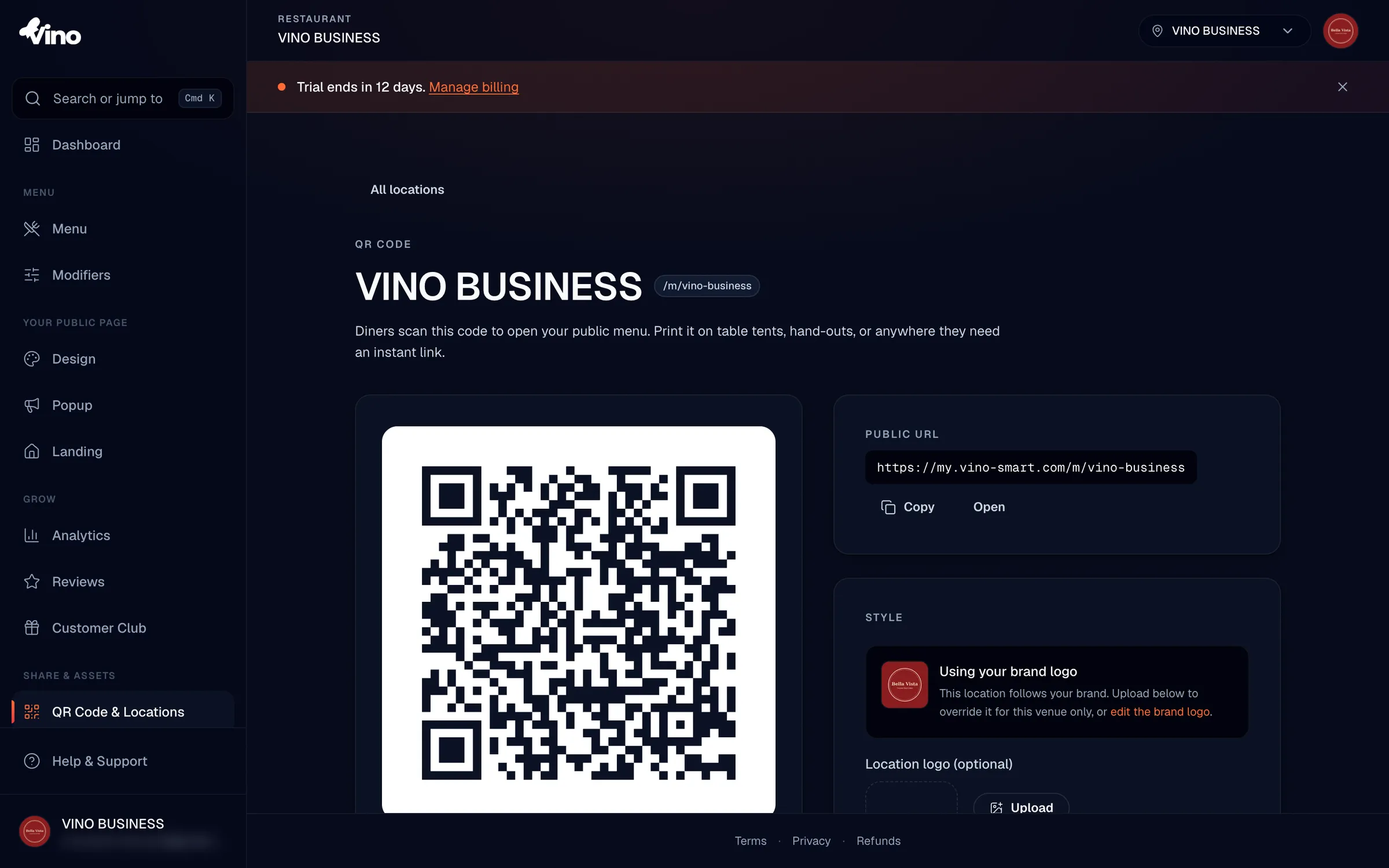
Choose the right file for the job:
| File format | Best for | Notes |
|---|---|---|
| PNG 2048 | Table tents and printed signage | Recommended for print; holds up to ~25 cm wide |
| PNG 1024 | Web and smaller prints | Medium resolution, faster download |
| SVG | PDFs and vector tools | Unlimited resolution; needs a vector-capable app |
Always test a printed code on two or more phones before placing a bulk order. A code that scans on your newest phone may fail on an older camera.
Turn off the center logo if older phones struggle
If you embedded a logo and some diners can't scan, the logo may be crowding the pattern on older cameras. The logo is opt-in and off by default. Open the QR page, switch off Show logo in center, download a fresh plain code, and test again. A plain QR code scans more reliably across devices.
Confirm you generated the code from the correct location
Each location in your account has its own public URL and its own QR code, so a code generated from the wrong venue will open the wrong menu. From the Locations page, click the QR code button next to the specific location you're printing for, then double-check the location name on the QR page before downloading. If you manage multiple venues, generate and label each code separately.
Editing your menu never changes the QR code. The code points to your location's URL, and diners always see your latest menu, so you don't need to reprint after menu updates.
Verify the public link actually works
On the QR page, find the Public URL section, which shows exactly what the code encodes. Use the Copy button to grab the link (for example, my.vino-smart.com/m/your-slug), then open it in a browser, or use the Open button, to confirm it loads the correct menu. If the link itself opens a blank or "not found" page, the menu link is the problem, not the printed code.
Check the URL slug is correct and current
A location's public URL slug is a unique identifier (3-40 characters, lowercase letters, numbers, and hyphens). You can rename it from the three-dot menu next to the location in the Locations list, but doing so breaks any codes already printed with the old slug. If you renamed a slug after printing, that's why older codes now fail. Settle on your final slug before printing in bulk, then download a fresh code that encodes the current URL.
Renaming a slug changes the public URL. Reprint and replace every physical code that used the previous slug.
Still stuck? Email us at info@vino-smart.com and we'll help you get diners scanning straight to your menu.