Fix a Menu or Item Not Showing to Diners
Troubleshoot why a menu, category, or item is invisible to diners: visibility toggles, stock status, availability schedules, and the correct menu link.
When a menu, category, or item isn't appearing for your diners, it's almost always one of a few settings rather than a bug. Your menu publishes instantly to your live public menu, so the fix is usually a quick toggle in the menu builder. Work through the checks below in order.
Check the item's visibility toggle
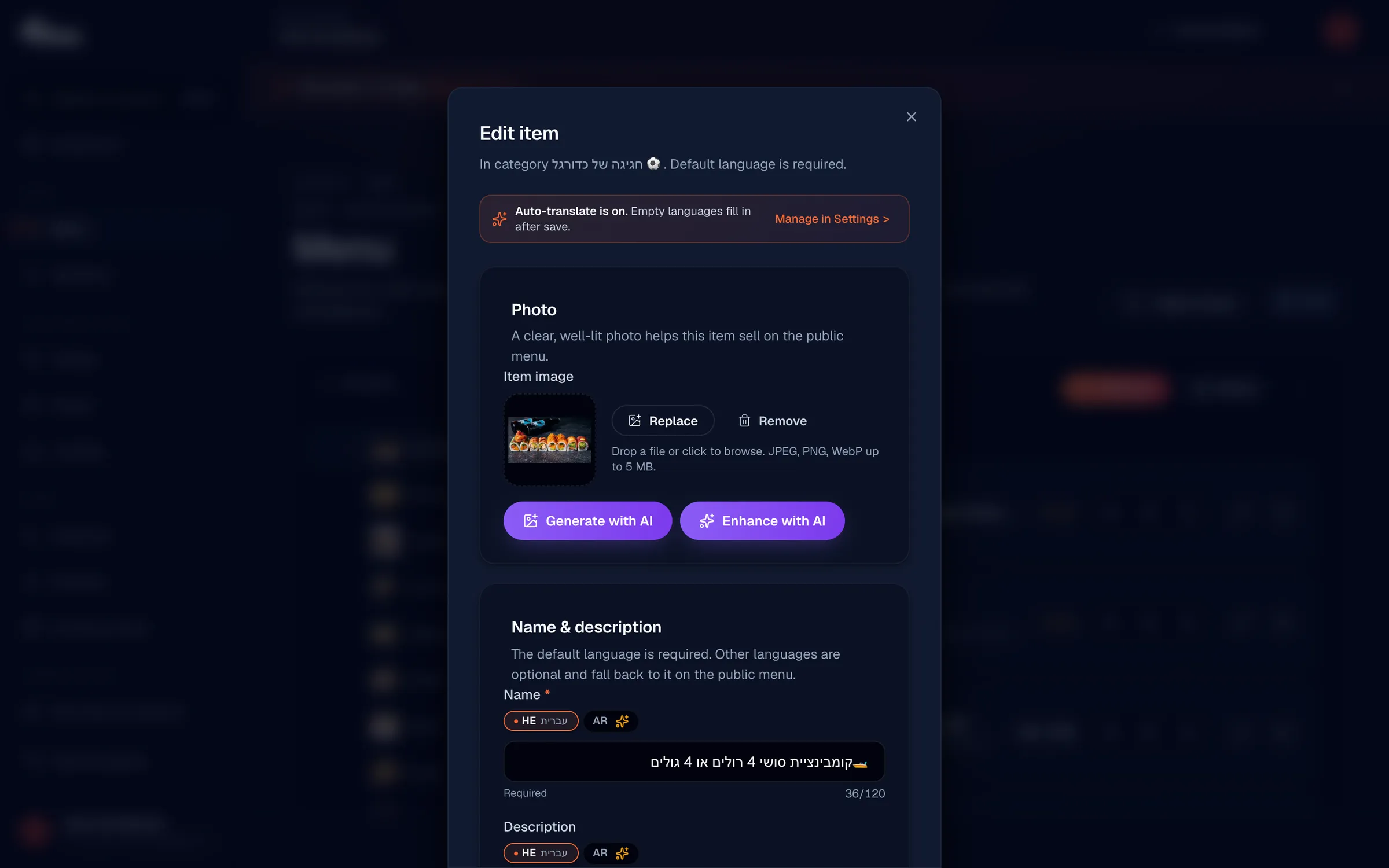
Open the Menu page from your dashboard sidebar, select the category, and open the item. In the item editor, find the Visible on menu toggle. When it's ON (green), the item shows to diners. When it's OFF (gray), the item is hidden, which is useful for staging dishes before they go live. Switch it ON and the change appears on your public menu immediately.
Visibility toggles are a feature, not a limitation. Use OFF to prepare a new dish privately, then flip it ON when you're ready for diners to see it.
Check whether the whole category is hidden
If an entire section is missing, the category itself is probably hidden. Each category has its own visibility toggle that hides or shows the category and all of its items at once. Even if individual items are set to visible, they stay hidden while their parent category is hidden. Open the category and turn its visibility ON to restore the whole section.
Check stock status
If an item is visible but appears grayed out and diners can't order it, the In stock toggle is OFF. Out-of-stock items remain on the public menu by design, grayed out to signal they're temporarily unavailable, without deleting them. Toggle In stock ON to make the item orderable again.
| Setting | When OFF | When ON |
|---|---|---|
| Visible on menu | Item is fully hidden from diners | Item appears on the public menu |
| In stock | Item is shown but grayed out, not orderable | Item is shown and available |
| Category visibility | Category and all its items are hidden | Category and its items appear |
Check availability schedules
Items and categories can be scheduled to appear only on certain days, within specific time windows, or during a date range. If your menu looks empty or shows different dishes at different times, open Availability in the item or category editor and review the schedule. Scheduling uses your restaurant's configured timezone, and filtering happens on the live menu, so diners only see what's scheduled for the current moment.
Confirm you're sharing the correct menu link
If a link opens the wrong menu or a "not found" page, you may be using an outdated or incorrect URL. Go to Settings, find your public menu URL (for example, my.vino-smart.com/m/your-slug), and use the copy button to grab the exact link. This slug is set when your account is created and is permanent, so it never changes once your menu is live.
Don't retype your menu link by hand. Always copy it from Settings to avoid typos in the slug that send diners to a missing page.
Remember: changes publish instantly
There's no separate Publish button. Every edit you make in the menu builder appears on your live public menu right away. That's why the visibility and stock toggles exist, so you can stage and control exactly what diners see in real time.
Still stuck? Email us at info@vino-smart.com and we'll help you track down why your menu isn't appearing.