Set up and manage your locations
Add, rename, set a default, and delete venues in Vino. Each location gets its own public menu URL.
Vino lets you manage every physical venue you run from a single account. Each location is its own menu with its own public URL and QR codes, so a downtown branch and a seaside branch can have completely separate menus while you administer them all from one dashboard.
Open the Locations page
Navigate to Locations from the main dashboard sidebar. This page lists every venue under your account, showing each one's name, a default badge where it applies, its public slug (/m/[slug]), timezone, and currency. From here you can add a new venue, open a location's QR code, or use the three-dot menu on any row to rename, set as default, or delete it.
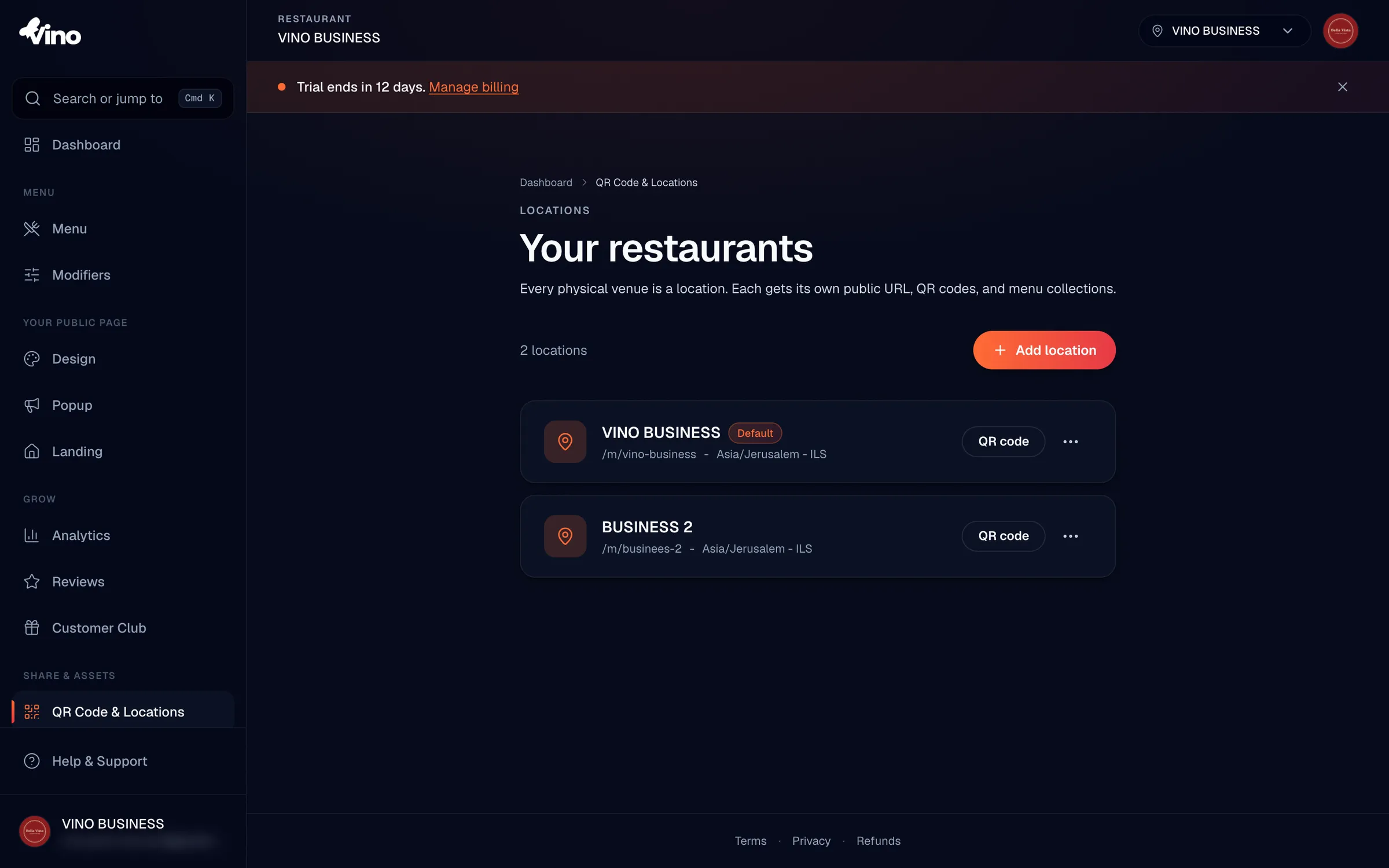
Add a location
Click the Add location button. Enter the venue name and a URL slug (for example, downtown-branch) that becomes its public menu address. If you want to base the new venue on an existing one, select Copy menu from to duplicate another location's menu structure instead of starting from an empty menu. Click Add location to confirm.
When you copy a menu, Vino brings over the categories, items, variations, tags, and modifier group attachments. It does not copy location-specific settings such as theme, logo, address, hours, reviews, or analytics. Each location's menu is managed independently after that.
Pick a slug you can read aloud and print, like cafe-marina. Slugs must be 3 to 40 characters, lowercase letters, numbers, and hyphens only, and they are globally unique across all of Vino, so very generic names may already be taken.
Choose a unique public URL slug
Each location's slug forms its public menu URL (/m/your-restaurant). This is exactly what the QR code encodes and what diners see when they scan, so it is worth getting right. The following details apply when you set or change a slug:
| Setting | Details |
|---|---|
| Location name | The display name used inside your dashboard and as public menu context. |
| Public URL slug | Unique identifier for the venue (for example, /m/your-restaurant). 3-40 characters, lowercase letters, numbers, and hyphens only. Globally unique across every Vino account. |
| Country, timezone, currency | Inherited from your account settings at creation time. Per-location overrides are not available in the current release. |
| Copy menu from location | Optional at creation: copies the category and item structure from an existing venue (but not analytics or location-specific settings). |
To copy a location's live menu URL, open that location's QR code page and click Copy next to the address shown under Public URL. For everything about generating, styling, and printing the QR code itself, see the create-and-print-qr-codes article.
Rename a location
From the Locations list, click the three-dot menu next to the venue and select Rename. You can change the location's display name or its public URL slug here. Renaming the slug changes the public menu address, so any previously printed QR codes pointing to the old slug will need to be regenerated and reprinted.
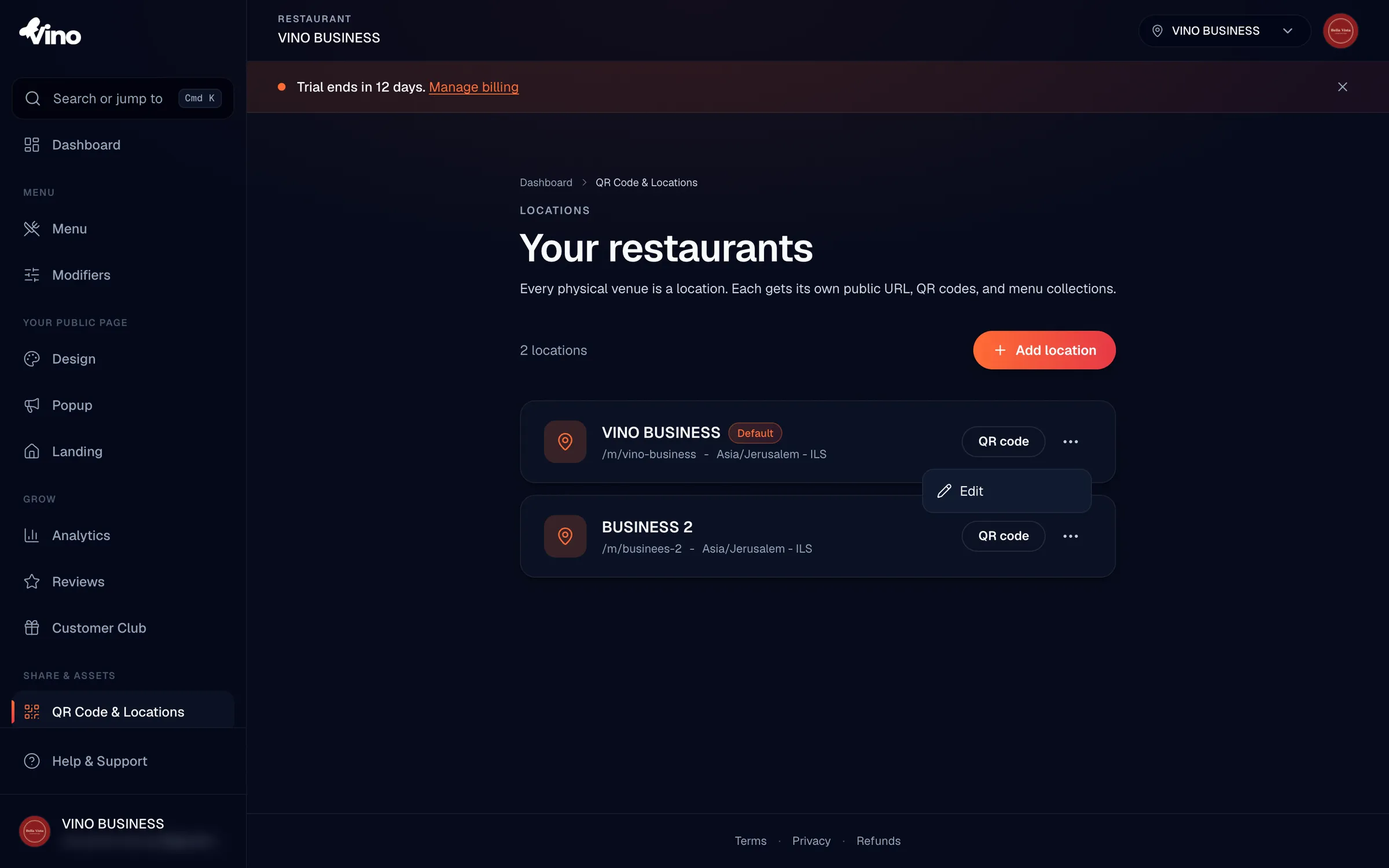
Set a default location
Click the three-dot menu next to a venue and select Set as default. The default location appears first in lists and acts as the fallback when you switch between accounts or no specific venue is active in your session. If you run a single location, it is your default automatically.
You cannot delete your account's default location. If you need to remove the current default, set another location as default first, then delete the original.
Delete a location
To remove a venue, click its three-dot menu, select Delete, and confirm. Deletion is blocked on your default location, so promote another venue to default first if needed. Deleted locations are soft-deleted and may be recoverable from Trash where that is supported, but treat a delete as permanent and double-check you have the right venue before confirming.
Still stuck? Email us at info@vino-smart.com and we will help you sort out your locations.