Create and print QR codes for your menu
Generate, style with a logo, download and print QR codes for a location, with sizing and contrast tips for reliable scanning.
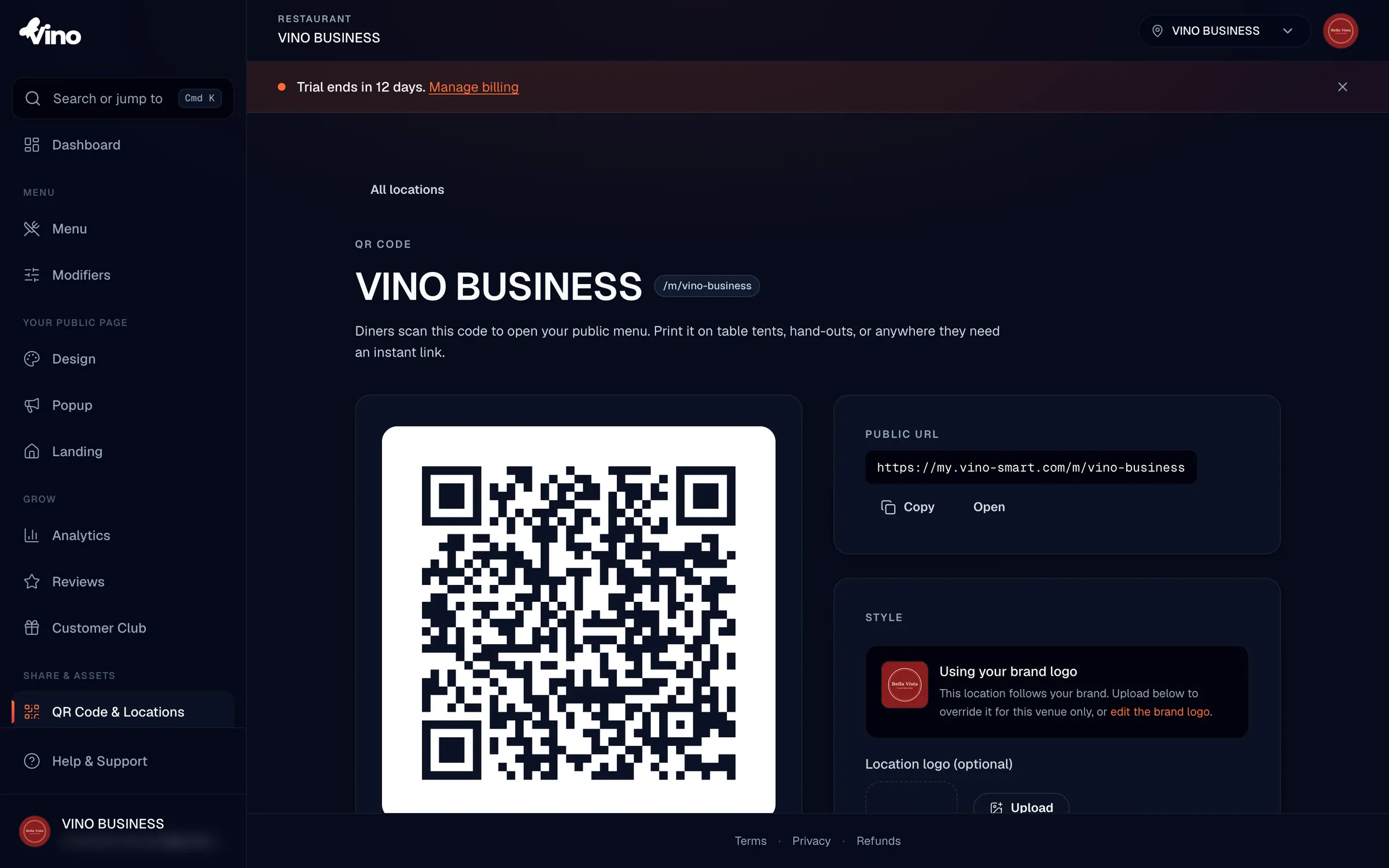
Each location in Vino Smart Menus has its own public menu URL and its own printable QR code. From the QR code page you can preview the code, optionally embed your logo, and download print-ready files in several formats so diners can scan straight to that venue's live menu.
Open the QR code page
Open Locations from your dashboard sidebar, then click the "QR code" button next to the location you want a code for. The page opens with a large QR preview on the left and, on the right, the location's public URL, a Style section for the logo, and a Download section. If you haven't created your venues yet, set those up first in Set up locations - every QR code is tied to one location's URL.
Check the public URL the code encodes
In the Public URL section you'll see the exact address the QR code points to (for example, your /m/your-slug menu link). Click "Copy" to put it on your clipboard, or "Open" to preview the live menu a diner lands on after scanning. This is the same menu visitors see, so it's worth opening it once to confirm everything looks right before you print.
If you ever change a location's URL slug, regenerate and reprint its QR code so it points to the new address.
Style the QR code with a logo
By default the code uses your brand logo if you have one. In the Style section you can override this per venue: use "Location logo (optional)" to upload a new logo for this location only, or click a sibling location's logo thumbnail under "Or reuse a logo from another location" to share the same mark. To go back to the account-wide mark, click "Reset to brand logo". The logo precedence is location override first, then your brand logo, then none.
Toggle the logo on or off
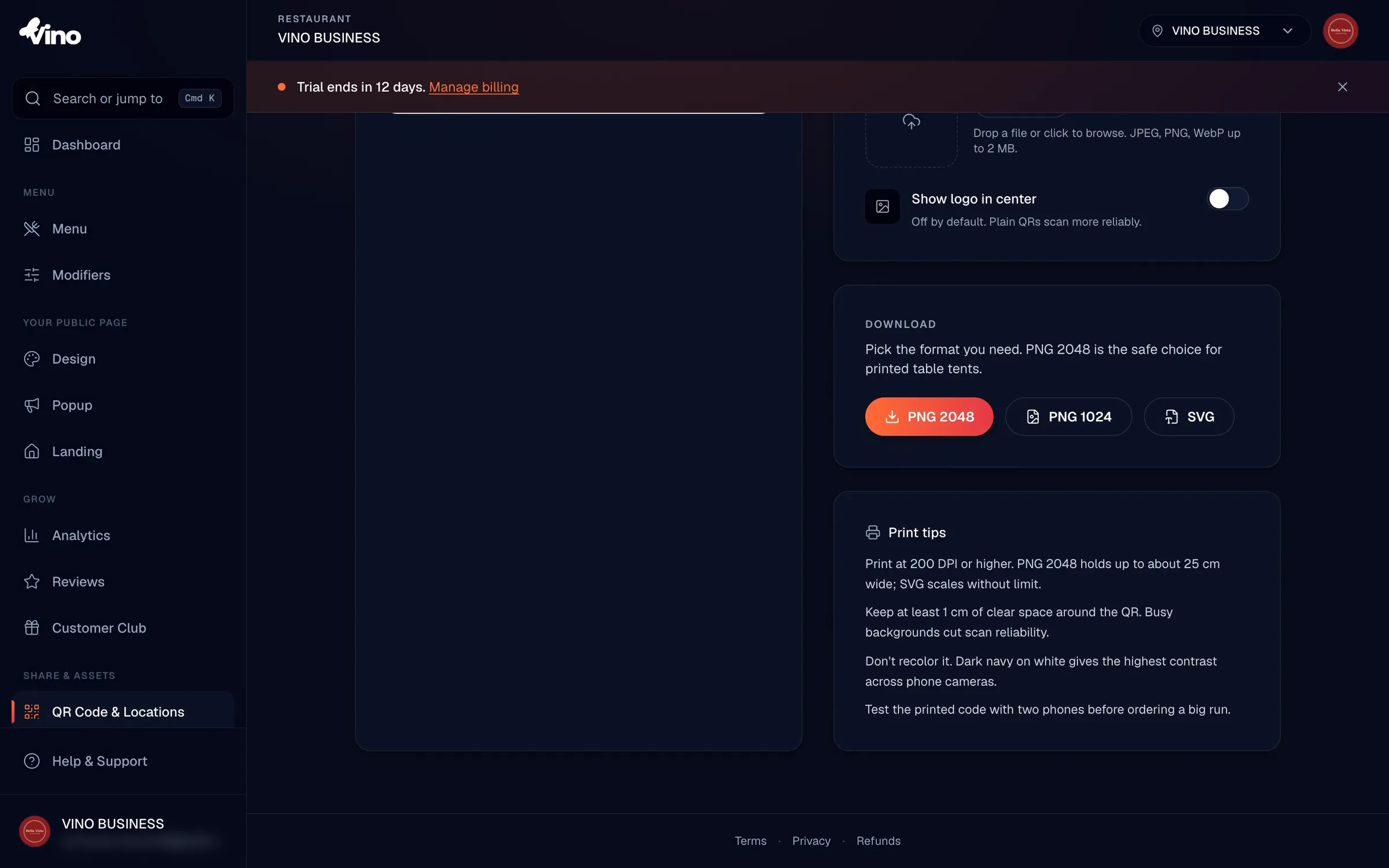
Use the "Show logo in center" switch to decide whether the logo is embedded in the code. It's off by default because plain QR codes scan more reliably, especially on older phones. When you turn it on, Vino adds a white rounded halo behind the logo to keep the code readable, but you should still test a printed sample before placing a bulk order. You can flip this toggle without re-uploading anything - the preview and download update together.
Always test a printed code with at least two different phones before ordering in bulk. A code that scans on your screen can still fail in print if it's too small, low-contrast, or the logo is too large.
Download print-ready files
In the Download section, choose the format that fits where the code will be used. File names include the location slug and dimensions, so they're easy to keep organized across venues.
| Format | Best for | Notes |
|---|---|---|
| PNG 2048 | Printing (table tents, posters) | Highest resolution; recommended for print, holds up to about 25 cm wide at 200+ DPI |
| PNG 1024 | Web and smaller prints | Medium resolution, faster to download |
| SVG | PDFs, flyers, vector tools | Infinite resolution; requires a vector-capable editor |
Click a format and Vino generates the file and triggers a download, with a toast to confirm. If a download fails, the toast explains why (for example, a logo that couldn't be loaded), and the code falls back to a plain version rather than breaking.
Print for reliable scanning
For dependable scans across phone cameras, keep the contrast and sizing generous. Vino renders the code as dark navy on a white background - the highest-contrast combination - so avoid recoloring or placing it on a busy background. Leave at least 1 cm of clear, light space around the code (a "quiet zone"), and don't shrink it below the point where modules blur together.
- Use PNG 2048 (or SVG) for anything printed; reserve PNG 1024 for web or very small prints.
- Keep at least 1 cm of empty margin around the code.
- Print dark navy on white - don't invert colors or print over photos.
- Test the printed result with two or more devices before a bulk order.
Still stuck? Email info@vino-smart.com and our team will help you get your QR codes scanning reliably.