Switch the menu language as a diner
How diners switch a Vino menu to their language, how the choice is remembered, and which languages appear based on the restaurant's settings.
When a diner scans a QR code or opens a menu link, they see the menu in the restaurant's languages and can switch to the one they prefer in a single tap. The menu updates instantly, and the choice carries over as you browse, so guests read the whole menu comfortably in their own language.
The languages a diner can choose from come from the restaurant's Localization settings, and translated text is created with the restaurant's AI auto-translation or entered by hand.
Open the menu
Open the menu link or scan the QR code with your phone's camera. Depending on the restaurant's setup, you'll either land on a short welcome (landing) page or go straight to the menu. The menu loads in the restaurant's default language to start, with everything ready to switch.
Find the language selector
Look in the top-right corner of the screen for the language selector. It shows a short code for the current language, such as EN, PT, or HE. The selector appears on both the landing page and the menu itself, so you can switch before or after you start browsing.
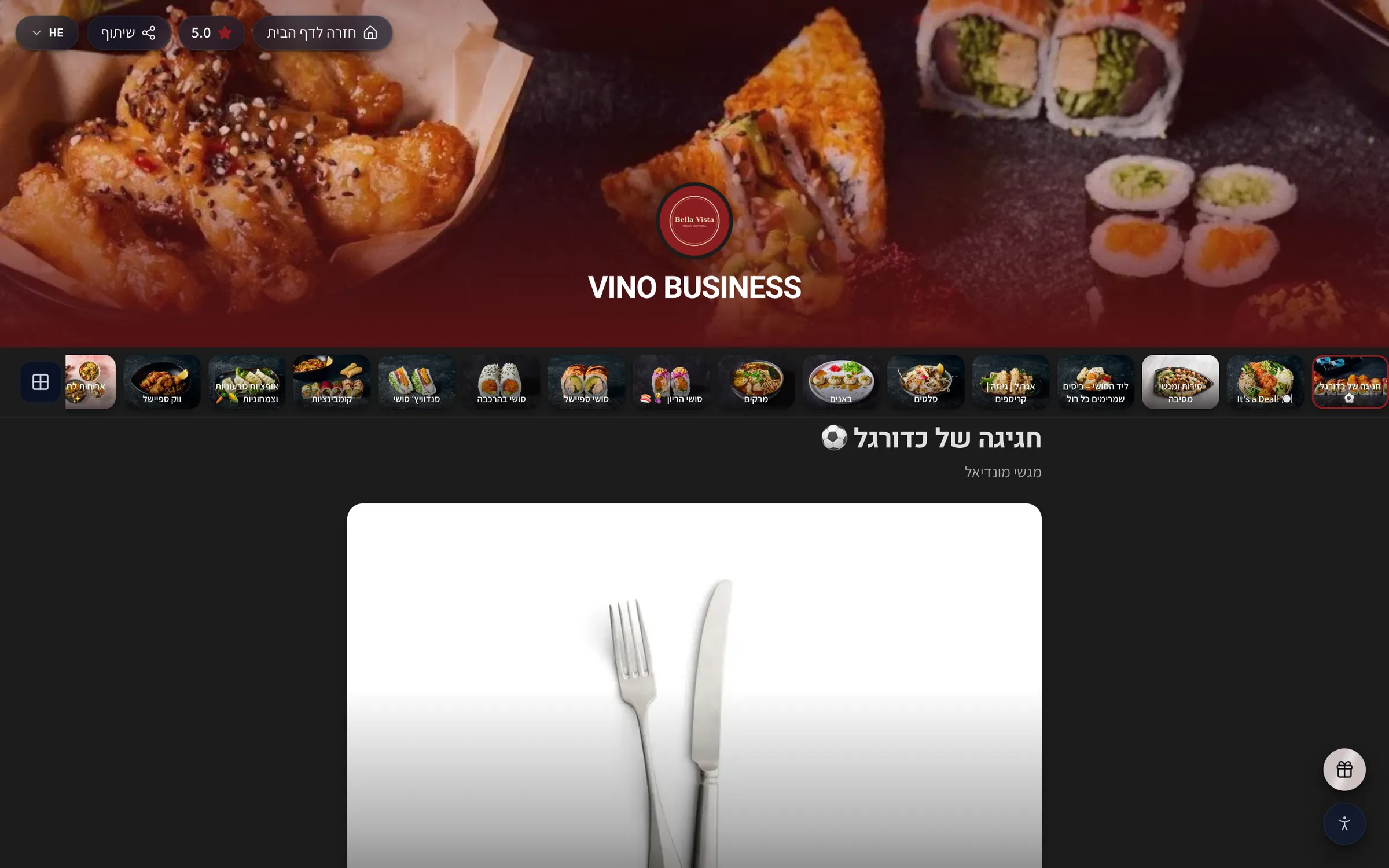
See the available languages
Tap the language selector to open the list of languages the restaurant offers. Only the languages the restaurant has enabled appear here, so the list differs from one restaurant to the next. Across Vino, restaurants can enable up to nine languages:
| Languages |
|---|
| English |
| German |
| French |
| Spanish |
| Italian |
| Portuguese |
| Russian |
| Hebrew |
| Arabic |
The text you read in each language comes from the restaurant. Restaurants can auto-translate their menu with AI or enter each language by hand. If a restaurant only offers one language, you may not see a selector at all.
Tap to switch the language
Tap the language you want, and the menu updates right away. The header, category names, item names, descriptions, and other text all switch to the language you picked, while prices, photos, and contact details stay the same. There's no page to reload and nothing to confirm.
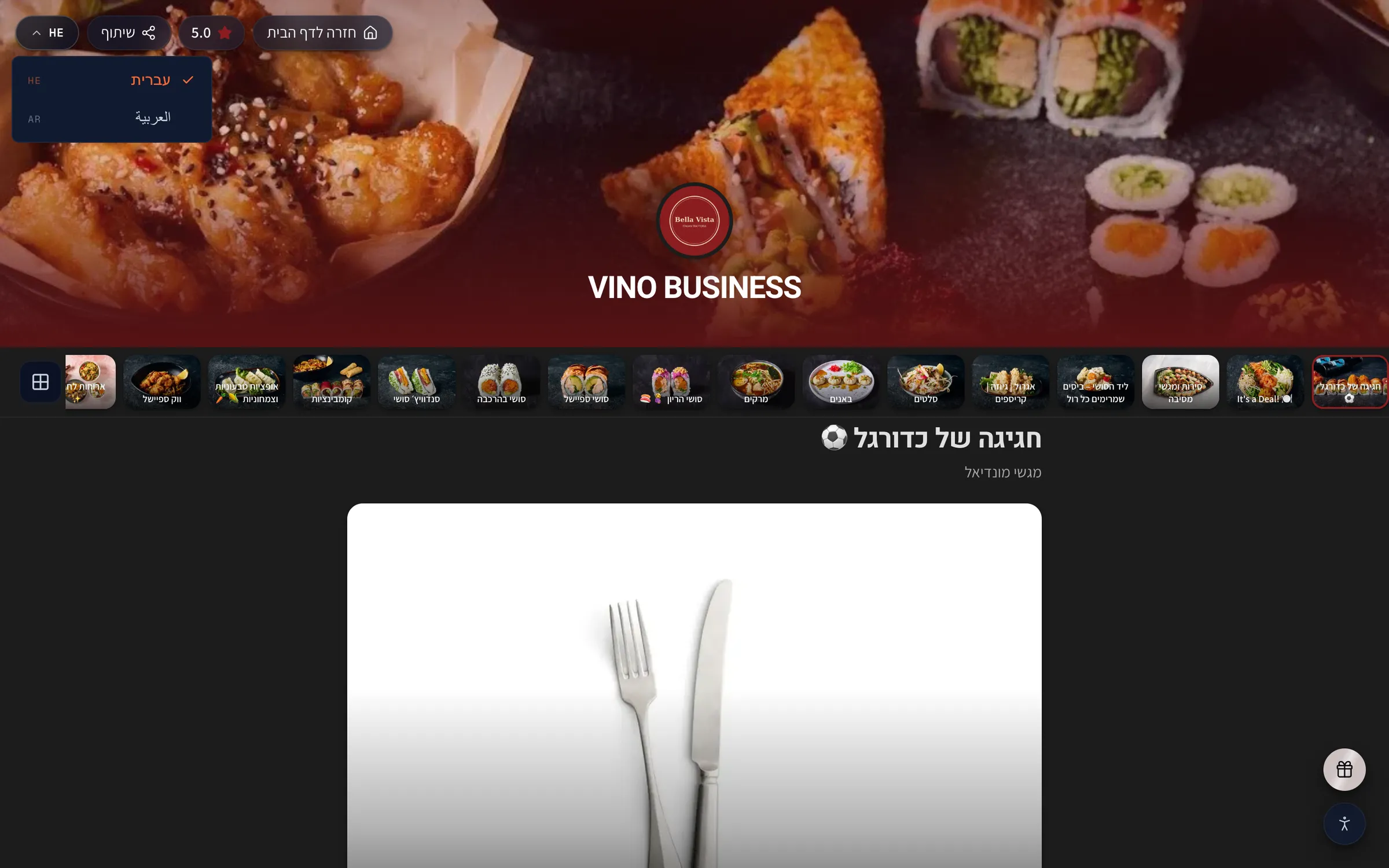
Right-to-left languages like Hebrew and Arabic automatically flip the whole layout to read right to left, so the menu feels natural in those languages.
Keep browsing in your language
Once you've switched, your choice stays with you as you move through the menu. Tap categories to jump between sections, open any item to see its details, and the text stays in the language you chose throughout your visit. Your selection is remembered for the rest of your browsing session in that browser.
The choice is tied to your current browsing session in that browser, not to your account. If you close the tab and scan the QR code again later, the menu opens in the restaurant's default language and you can switch again in one tap.
Still stuck? Email us at info@vino-smart.com and we'll help you get the menu showing in the right language.