Turn on AI auto-translation for your menu
Enable Google Gemini auto-translation in Localization settings so empty language fields fill in automatically every time you save.
AI auto-translation uses Google's Gemini AI to fill in your empty language fields automatically the moment you save. Write your menu once in your default language, hit save, and the names, descriptions, and other content translate into every enabled language, while your original wording, tone, and food names stay exactly as you wrote them. Auto-translation is switched on by default.
Open Settings > Localization
In the dashboard, go to Settings and select the Localization tab. This is where you control every language behavior for your menu, including the auto-translate toggle, your default (source) language, and the list of languages your menu supports.
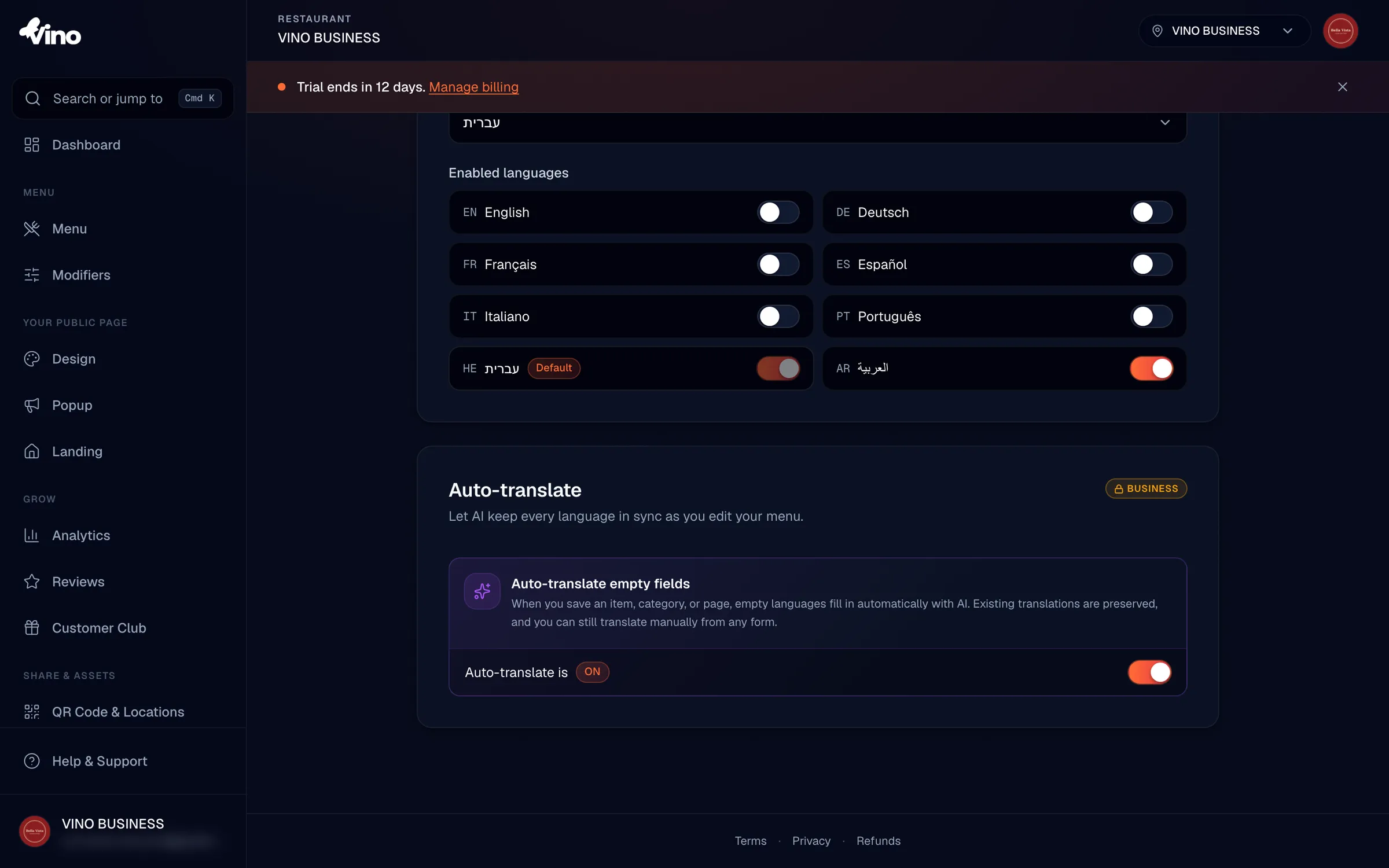
Verify the Auto-translate toggle is on
Under Auto-translate, check that the toggle is ON. It defaults to ON, so in most cases there's nothing to change. You can switch it off at any time without losing any translations you've already made, only the automatic filling of empty fields stops.
Turning auto-translate off and back on never overwrites your work. Auto-translation only ever fills empty language slots, it leaves any field you've written or edited untouched.
Set your default language and enable your target languages
In the Languages section, choose your default language (the source language you write in first) and enable at least two languages so there's something to translate into. Translation only happens into languages you've marked as enabled.
The supported languages are:
| Languages |
|---|
| English |
| German |
| French |
| Spanish |
| Italian |
| Portuguese |
| Russian |
| Hebrew |
| Arabic |
Here's how the three settings work together:
| Setting | What it does |
|---|---|
| Auto-translate (ON/OFF) | Controls whether empty fields auto-fill after you save. Defaults to ON. |
| Default language (source) | The language you write in first, this is what gets translated. |
| Enabled languages (targets) | The languages your menu supports, translation only happens into these. |
Write your content in the default language and save
When you create or edit a menu item, category, modifier, popup, landing page, or loyalty config, fill in your default language first, then save. After saving, a notification appears showing the translation progress, for example "12 fields translated, 1 couldn't auto-fill."
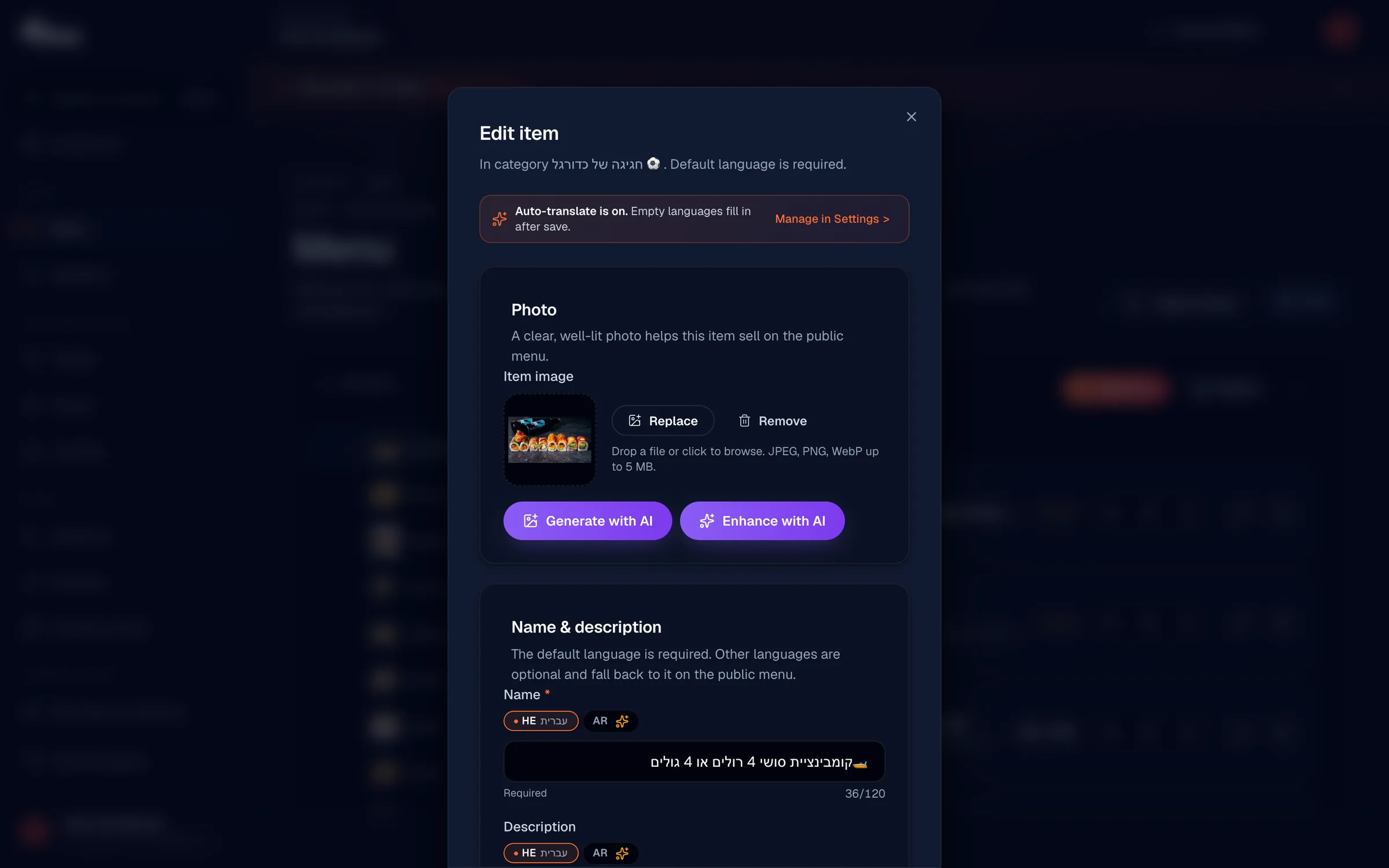
Gemini is instructed to keep your content faithful, so it:
- Preserves food and ingredient names exactly, it won't translate proper product names.
- Keeps your original tone, formality, and capitalization.
- Translates across multiple fields per entity, such as both names and descriptions.
Review the translated fields
Open the locale tabs and check the results. Every enabled language you hadn't already filled in will now contain a translation, while any field you wrote or edited yourself stays exactly as it was. Edit anything you'd like to refine, your changes are always safe.
Auto-translation never touches non-language fields. Prices, images, phone numbers, URLs, and email addresses are left alone, and any field you've already filled in by hand is skipped.
If Gemini returns text in the wrong script (for example Latin characters when Hebrew was expected), that result is rejected and the field is left empty so you can translate it manually. If one language times out, the others still complete.
Translating manually with auto-translate off
If auto-translate is OFF, no automatic filling happens. You can still translate everything by hand, use the Translate button in each form, or fill in fields one language at a time using the locale tabs.
Still stuck? Email us at info@vino-smart.com and we'll help you get your menu translated.