AI Image and Content Tools in Vino
Discover Vino's AI helpers: menu scan and import, image enhancement, image generation, and alt text-and learn where to find each.
Vino includes a set of AI helpers that take the busywork out of building a beautiful, accessible menu-scanning a paper menu into structured items, sharpening your photos, generating dish images, and writing alt text for screen readers and SEO. This overview explains what each tool does and where to find it.
AI menu scan and import (during onboarding)
When you first sign up, the onboarding wizard's Menu step gives you three ways to populate your menu fast. The quickest is Import from Wolt or a website: paste a link and your items and photos import in seconds. The second is Scan a paper menu with AI: upload a photo or PDF of your printed menu, and Vino extracts the items automatically in an inline review-and-apply flow without leaving onboarding. The third is plain hand-entry, where you name a category and add your first dish.
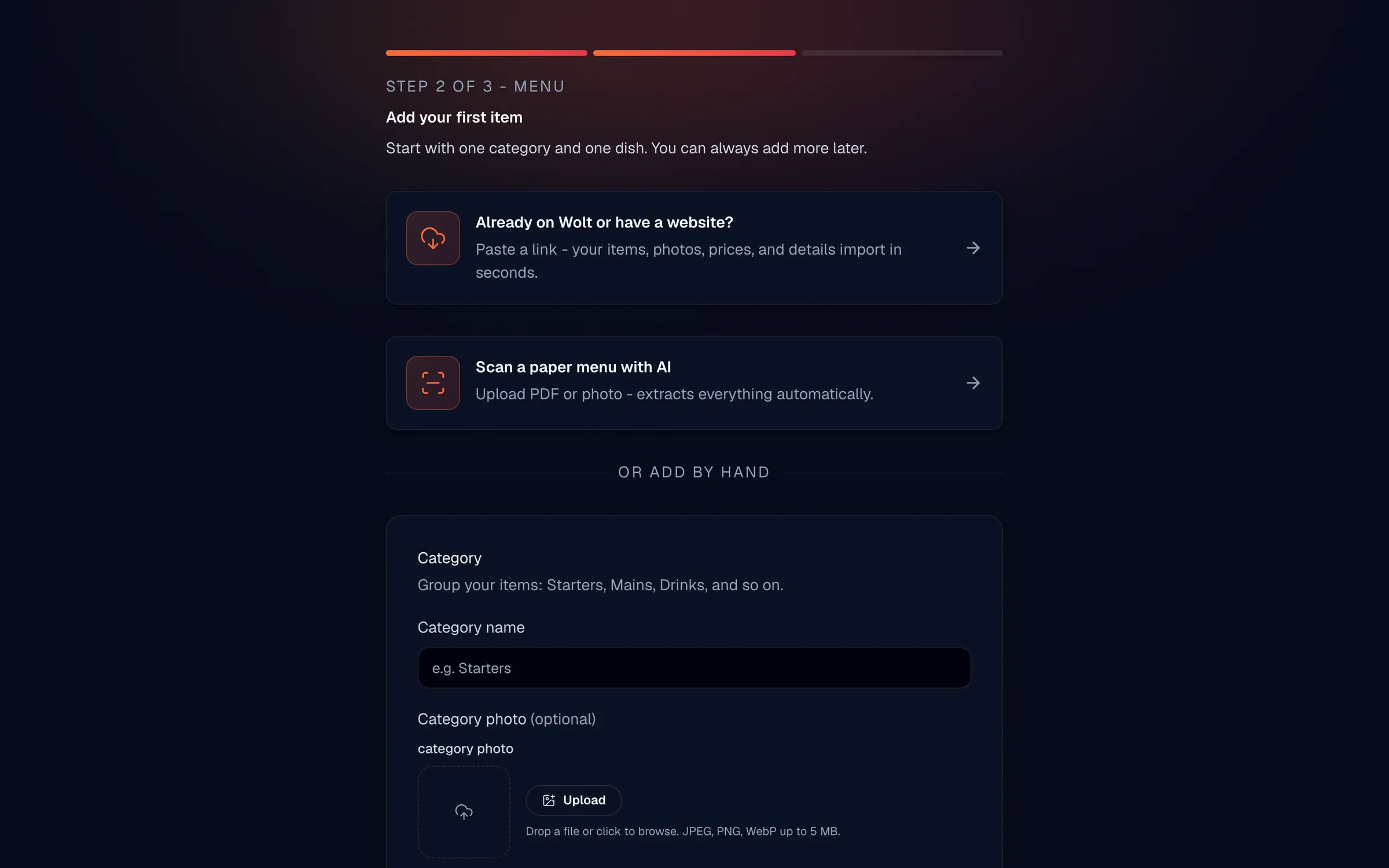
- Import from a link - Paste a Wolt or website URL; items and photos import automatically.
- Scan a paper menu with AI - Upload a photo or PDF; AI extracts the items for you to review and apply.
- Add by hand - Enter a category name, then add a dish with name, description, and price.
A large bilingual menu can take a little while to scan-give the AI a moment to finish extracting before you review the results.
AI image enhancement
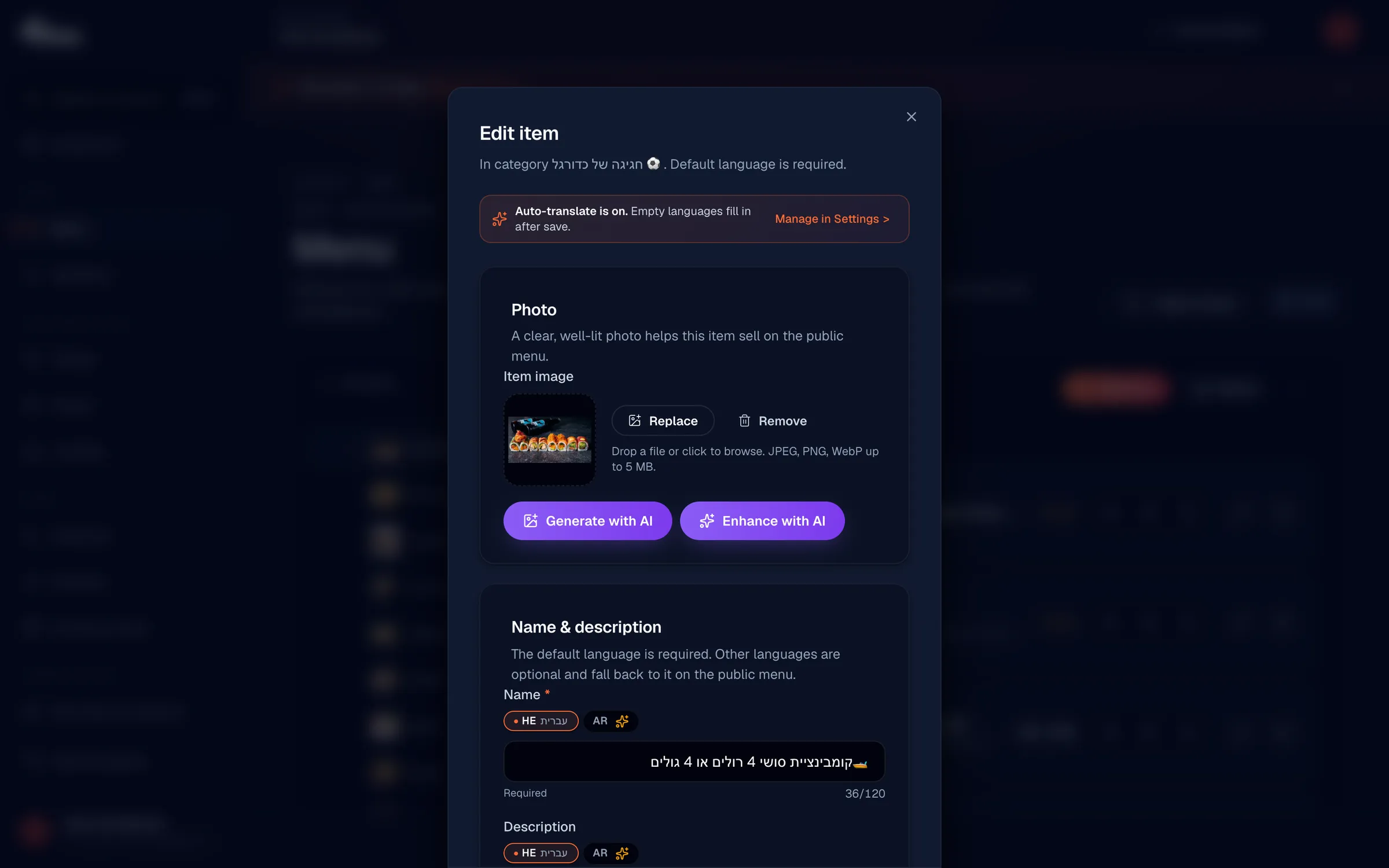
Image enhancement improves the lighting, color accuracy, and detail of a menu photo so your dishes look their best. You'll find it on the item photo: during onboarding on the Menu step, and inside the menu editor when you upload an item image. Look for the AI enhance button on the photo, run it, and replace the original with the polished version if you like the result.
AI image generation
Vino can generate AI menu photos for items as well as enhance the ones you upload. This is handy when you don't have a usable photo for a dish but still want a clean, on-brand image on your public menu. You'll find image generation alongside enhancement in the menu editor when working on an item's photo.
AI alt text
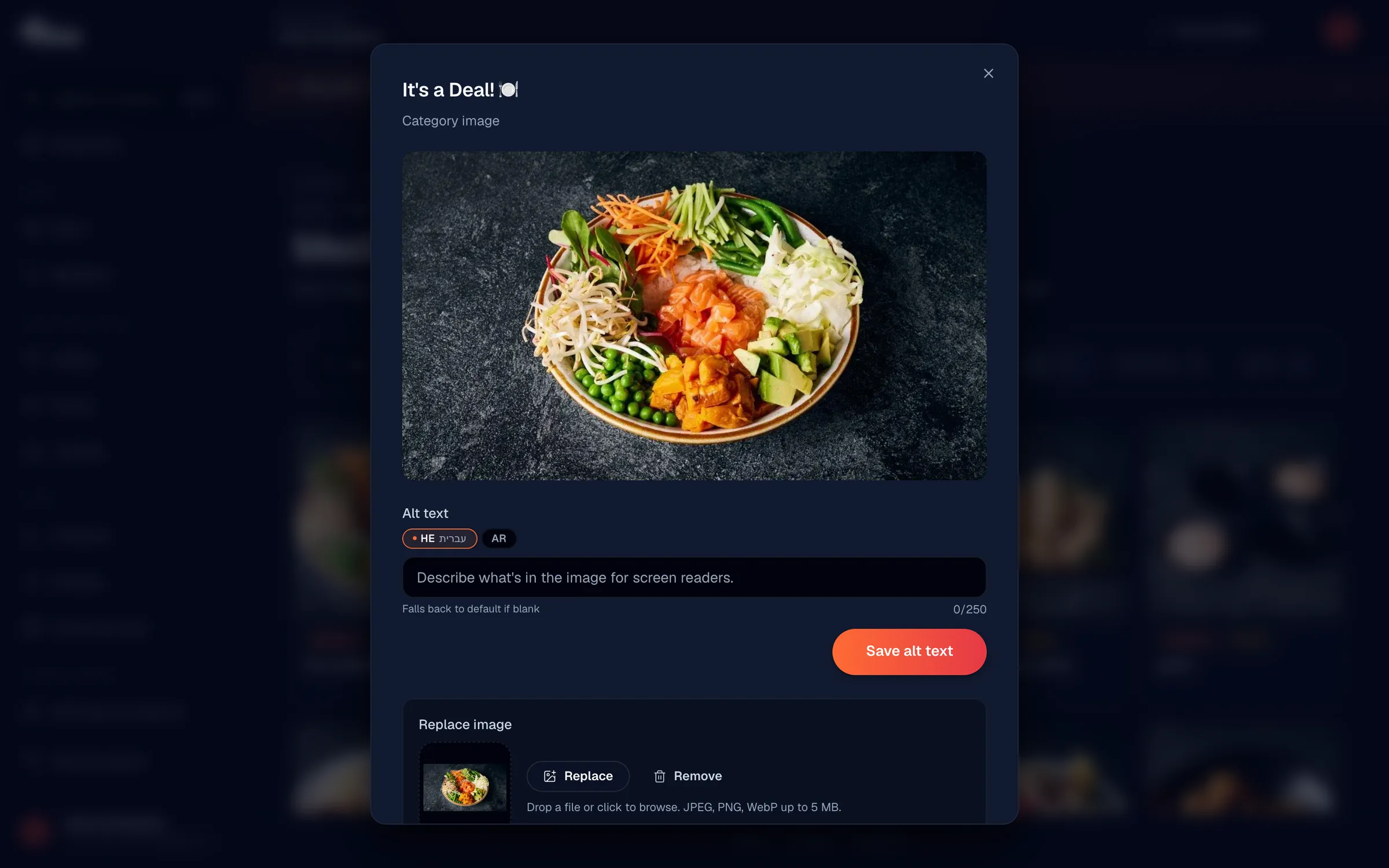
Alt text is the short description a screen reader announces for an image, and it also helps your menu's SEO. Vino stores alt text per enabled language, and it can write those descriptions for you automatically based on each item's name and description. You can generate alt text one image at a time or in bulk from the Media library.
To use AI alt text from the Media library:
- Open the Media page from your dashboard sidebar.
- Click an image card to open its detail panel, then click Regenerate next to AI alt text to write descriptions in every enabled language.
- To do many at once, check the boxes on up to 50 images, then click Regenerate alt in the sticky action bar at the bottom-the AI fills them in the background.
You can always edit alt text by hand (up to 250 characters per language) and click Save alt text, whether or not you use the AI helper. Vino also tracks whether each description was AI-generated or human-written, shown as a provenance badge in the editor.
Where to find these tools at a glance
- AI menu scan and import - Onboarding Menu step (
/welcome). - AI image enhancement - On item photos in onboarding and the menu editor (
/menu). - AI image generation - In the menu editor (
/menu) on item photos. - AI alt text - In the Media library (
/media) and inline on item images.
Still stuck? Email us at info@vino-smart.com and we'll help you get the most out of Vino's AI tools.