Manage photos and media in your menu
Upload, compress, replace and remove menu images in one place, add alt text in every language, and generate AI alt text.
The Media page is the single place to upload, organize, and manage every image attached to your menu categories and items. Pictures are compressed automatically in your browser for fast load times, and alt text keeps your menu accessible and better for search, all without jumping between item editors.
Open the Media page
Log in to your Vino dashboard and open the Media page from the sidebar menu. You will see a grid of every image used across your menu, each card showing its thumbnail, the category or item it belongs to, and an alt text badge so you can tell at a glance what still needs attention.
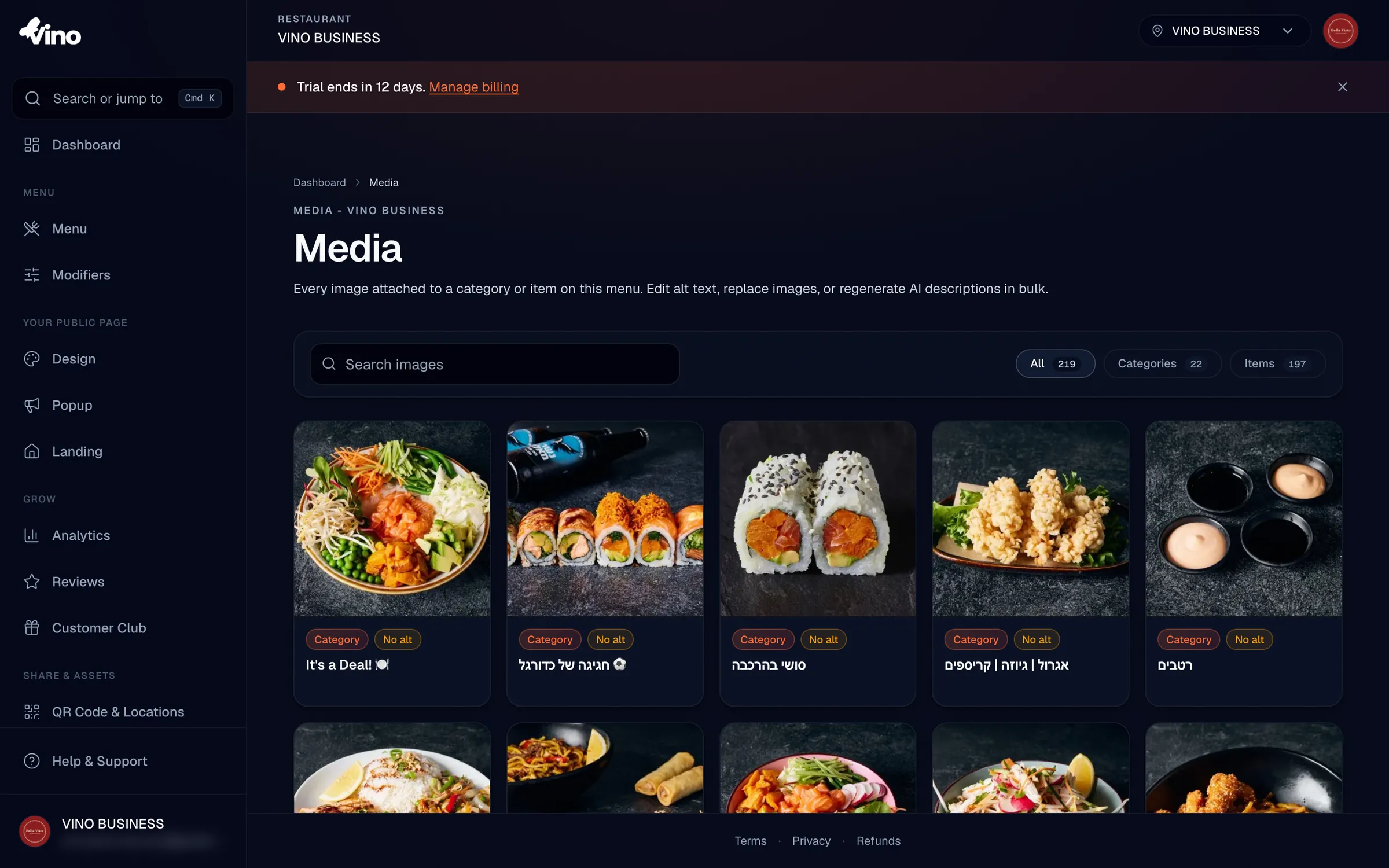
You can also add photos inline while creating or editing categories and items on the Menu page. The Media page is the unified view that brings all of those images together.
Upload an image
In the search and filter toolbar, find the dropzone. Click it to browse your files, or drag and drop a JPEG, PNG, or WebP image straight onto it. Your image is compressed in your browser to an optimized file size before it is uploaded, so large photos load quickly for diners without you doing anything extra.
- Supported formats: JPEG, PNG, WebP
- Maximum size before compression: 5 MB
- Compression runs on your device automatically, so the upload size is reduced before it leaves your browser
Photo orientation is corrected automatically during compression, so portrait shots taken on a phone display the right way up.
Search for an image
Use the Search box at the top of the page to find images by category name, item name, or existing alt text. Results filter in real time as you type, so you can jump straight to the photo you want instead of scrolling through the whole grid.
Filter images by type
Use the filter chips to narrow the grid to the kind of image you care about. Each chip shows a count so you know how many images fall into each group.
| Chip | Shows |
|---|---|
| All | Every image across your menu |
| Categories | Only category header images |
| Items | Only individual item photos |
Edit alt text
Click any image card to open its detail panel. Under Alt text, write a short description for each enabled language (up to 250 characters per language), then click Save alt text. Good alt text makes your menu more accessible to diners using screen readers and helps search engines understand your images.
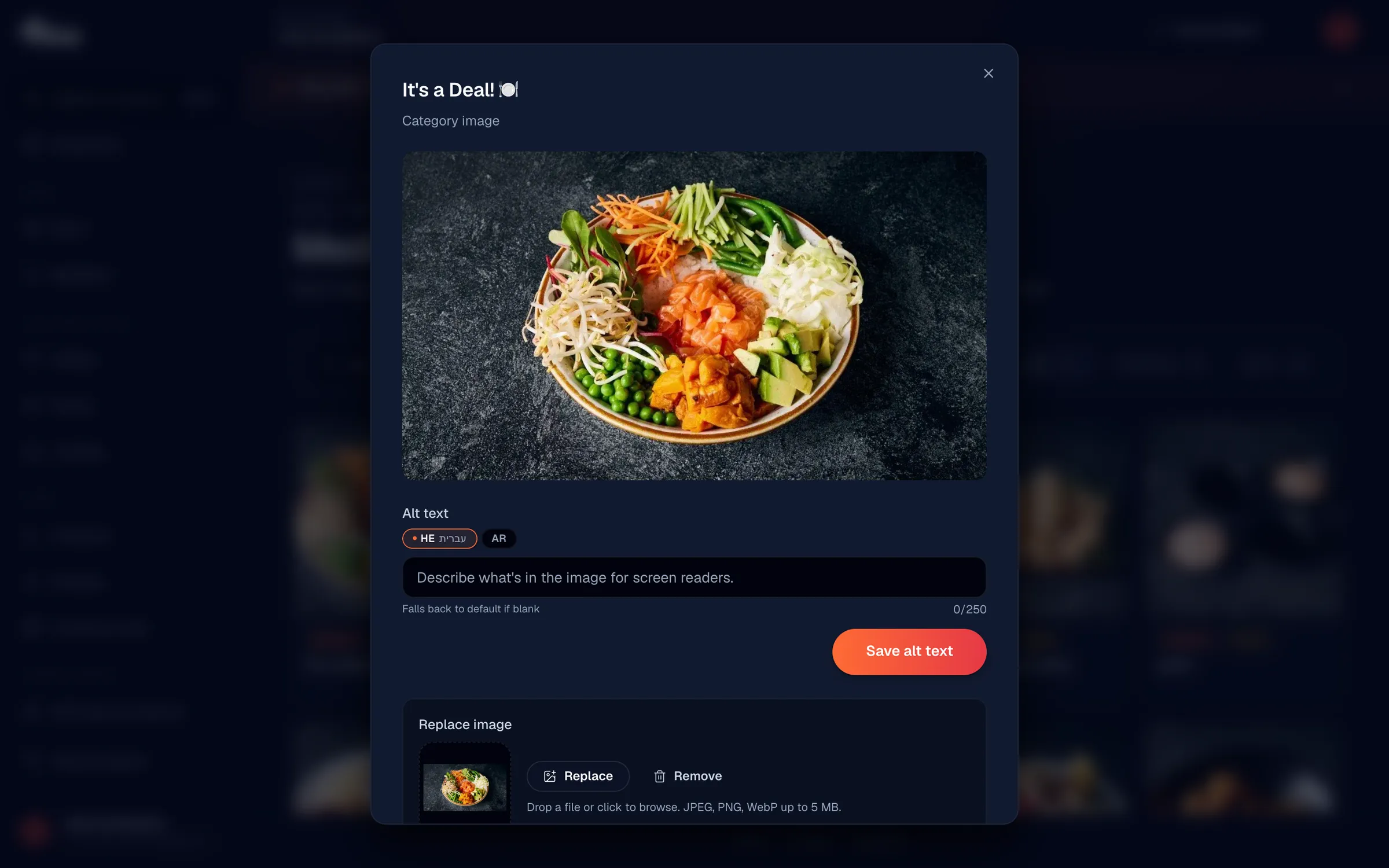
Leaving an alt text field empty and saving clears that language's description, so only fill in the languages you actually use.
Generate AI alt text
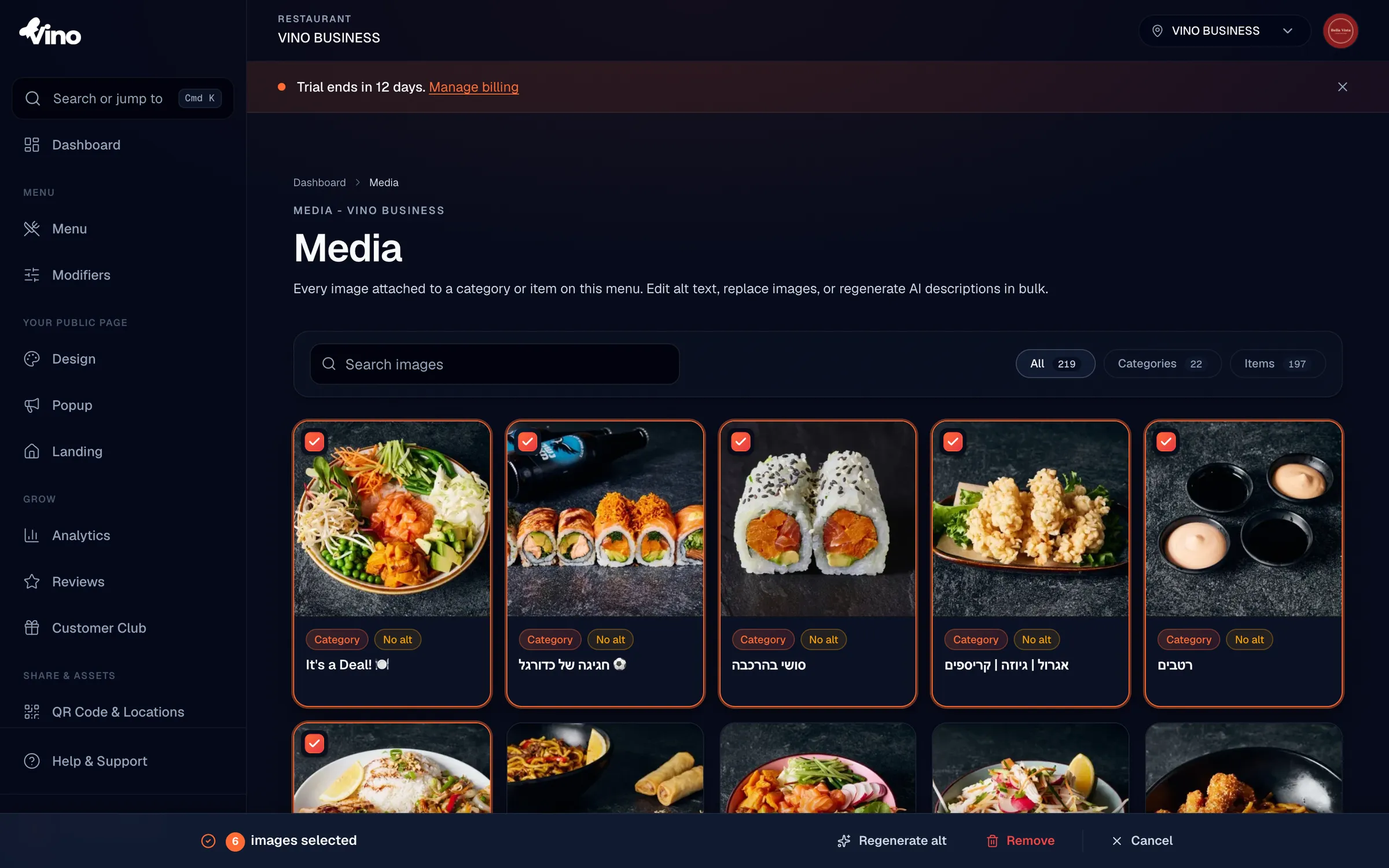
You can let Vino write alt text for you in every enabled language. To do one image, open its detail panel and click Regenerate next to AI alt text. To do several at once, select up to 50 images with the checkboxes and click Regenerate alt in the sticky action bar; descriptions are generated in the background while you keep working.
Replace an image
Open the detail panel for any image and, under Replace image, click to upload a new photo. The replacement uploads immediately and stays attached to the same category or item, so nothing else in your menu changes. The old alt text is cleared so you can write a fresh description that matches the new picture.
Remove a single image
To remove one image, open its detail panel, scroll to Remove image, click Remove, and confirm in the popup. Only the photo is removed; the category or item it belonged to stays in your menu untouched.
Remove multiple images
To clear out several images at once, check the boxes on up to 50 image cards, then click Remove in the sticky action bar at the bottom of the page. Confirm in the popup and all the selected photos are removed while their categories and items remain in place.
Bulk regenerate AI alt text
You can refresh alt text for many images in one go. Select up to 50 images by checking their boxes, then click Regenerate alt in the bottom action bar. Vino generates descriptions for every selected image in all enabled languages in the background, so you can carry on with other tasks while it finishes.
Bulk actions apply to up to 50 images per action. If you have more to update, work through them in batches of 50.
Still stuck? Email us at info@vino-smart.com and we will help you sort out your menu photos.