Create your account and sign in to Vino
Sign up with your restaurant details, log in to your dashboard, and reset a forgotten password - available on every Vino plan.
Vino Smart Menus gives you a secure, multi-step account flow so you can sign up with your restaurant details, log in to your dashboard, and reset your password whenever you need to. Getting an account is the first step to building your digital QR menu.
Open the signup page
Head to the signup page to start creating your account. This is where you'll enter your personal and restaurant details in a single short form. Everything you set here can be changed later in Settings, so don't worry about getting every detail perfect on the first try.
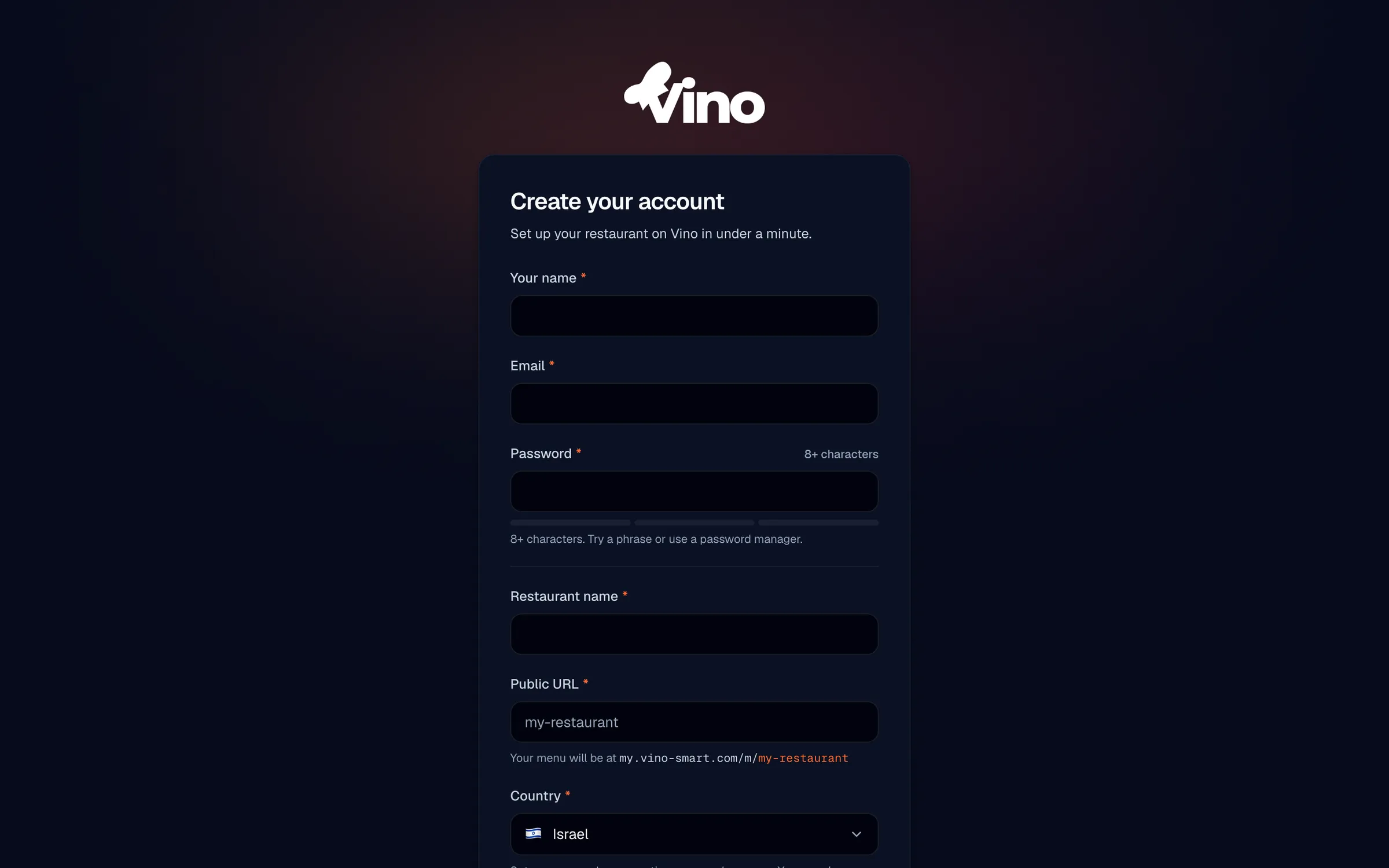
Enter your name, email, and password
Type your full name, a valid email address, and a strong password. Your password must be at least 8 characters, and a real-time strength indicator shows weak, OK, or strong as you type to help you pick something secure. The indicator flags common and previously breached passwords and nudges you to mix in uppercase letters, numbers, and symbols.
- Full name - used to personalize your dashboard and account records.
- Email - used for login, password reset, and account notifications. It must be valid and unique to one account.
- Password - minimum 8 characters; aim for the "strong" rating.
A passphrase of a few unrelated words is usually both easier to remember and stronger than a short, complicated password.
Add your restaurant name
Enter your restaurant name. This is your public business name - it appears in your dashboard and on your live menu, so write it exactly the way you want diners to see it.
Choose your public menu URL (slug)
Pick the public web address for your menu, known as your slug. Vino checks availability in real time as you type and won't let you continue if the slug is already taken or reserved. Once set, your menu will be reachable at my.vino-smart.com/m/<your-slug>.
| Rule | Detail |
|---|---|
| Length | 3-40 characters |
| Allowed characters | Lowercase letters, numbers, and dashes only |
| Uniqueness | Must be globally unique across all of Vino |
Keep your slug short and memorable - something close to your restaurant name works best, since it's part of the link diners will scan and share.
Select your country
Choose your country from the dropdown. Vino uses this to set your default language, timezone, and currency based on its locale mappings, so your menu and dashboard match where you operate. All three can be changed later in your account settings if you need to adjust them.
Review the terms and create your account
Check the terms of service and privacy policy links at the bottom of the form, then click Create account. If email confirmation is enabled, Vino sends a confirmation link to the address you registered with - open your inbox and click that link to activate your account. The confirmation link is device-agnostic, so it works even if you open the email on a different phone or computer.
If email confirmation is on, you'll be sent to the login page with a notice to check your email; your account is set up once you confirm. After confirming, first-time users are guided through a short setup before reaching the dashboard.
Log in to your dashboard
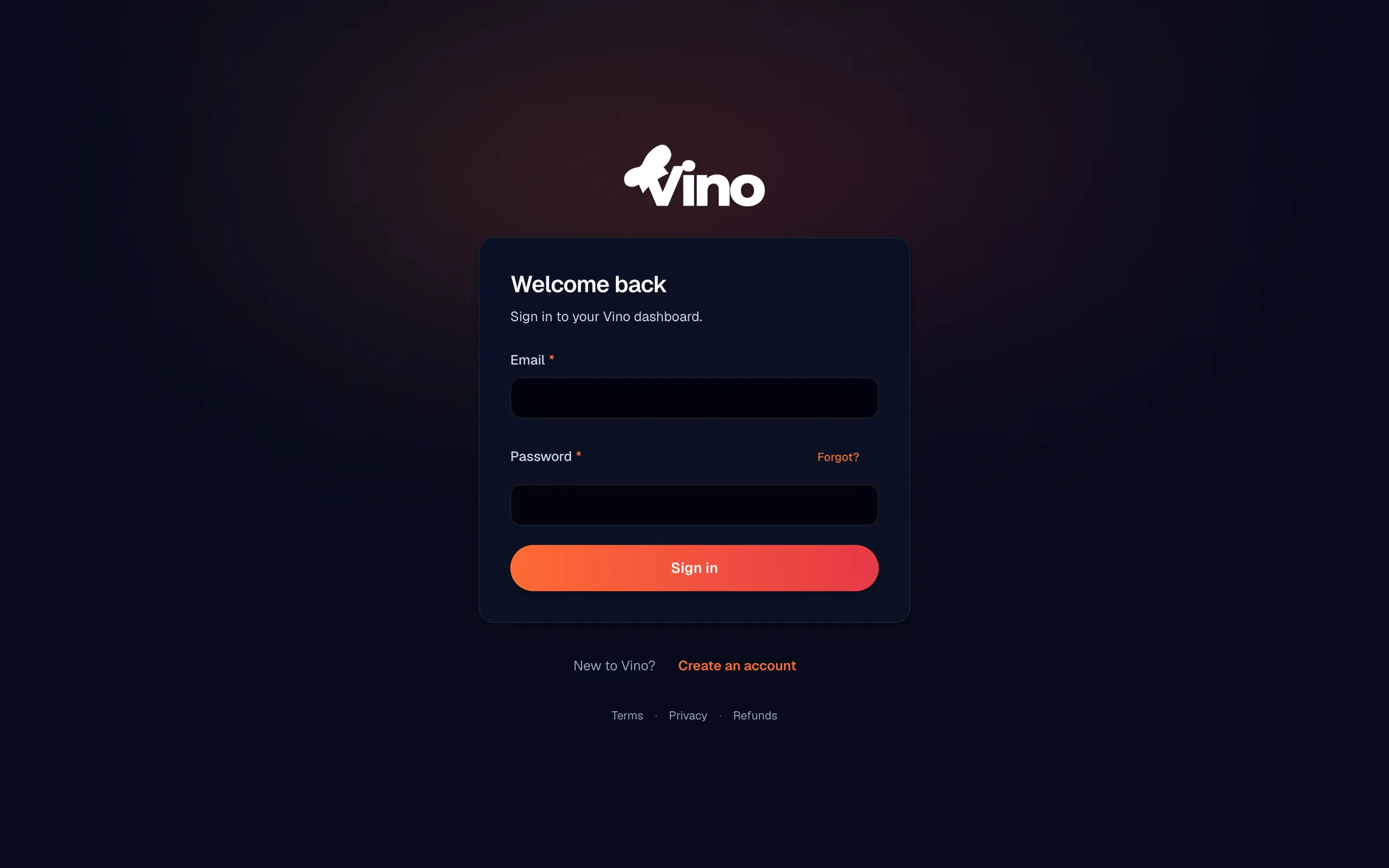
Once your account is active, go to the login page, enter your email and password, and sign in. You'll land in your dashboard, ready to build your menu. If you followed a bookmarked link to a specific feature before signing in, Vino returns you to that page after you log in.
Reset a forgotten password
If you can't remember your password, click the Forgot? link on the login form. Enter the email address you registered with, and Vino sends a reset link to that inbox. For your security, the page always confirms the email was "sent" - even if no account uses that address - so the system never reveals which emails are registered.
- On the login form, click Forgot?.
- Enter your registered email address and submit.
- Check your inbox for the reset link and open it.
- Enter a new password (8+ characters; the strength bar guides you) and confirm it.
- Click Update password - you'll be returned to the login page.
- Sign in with your new password.
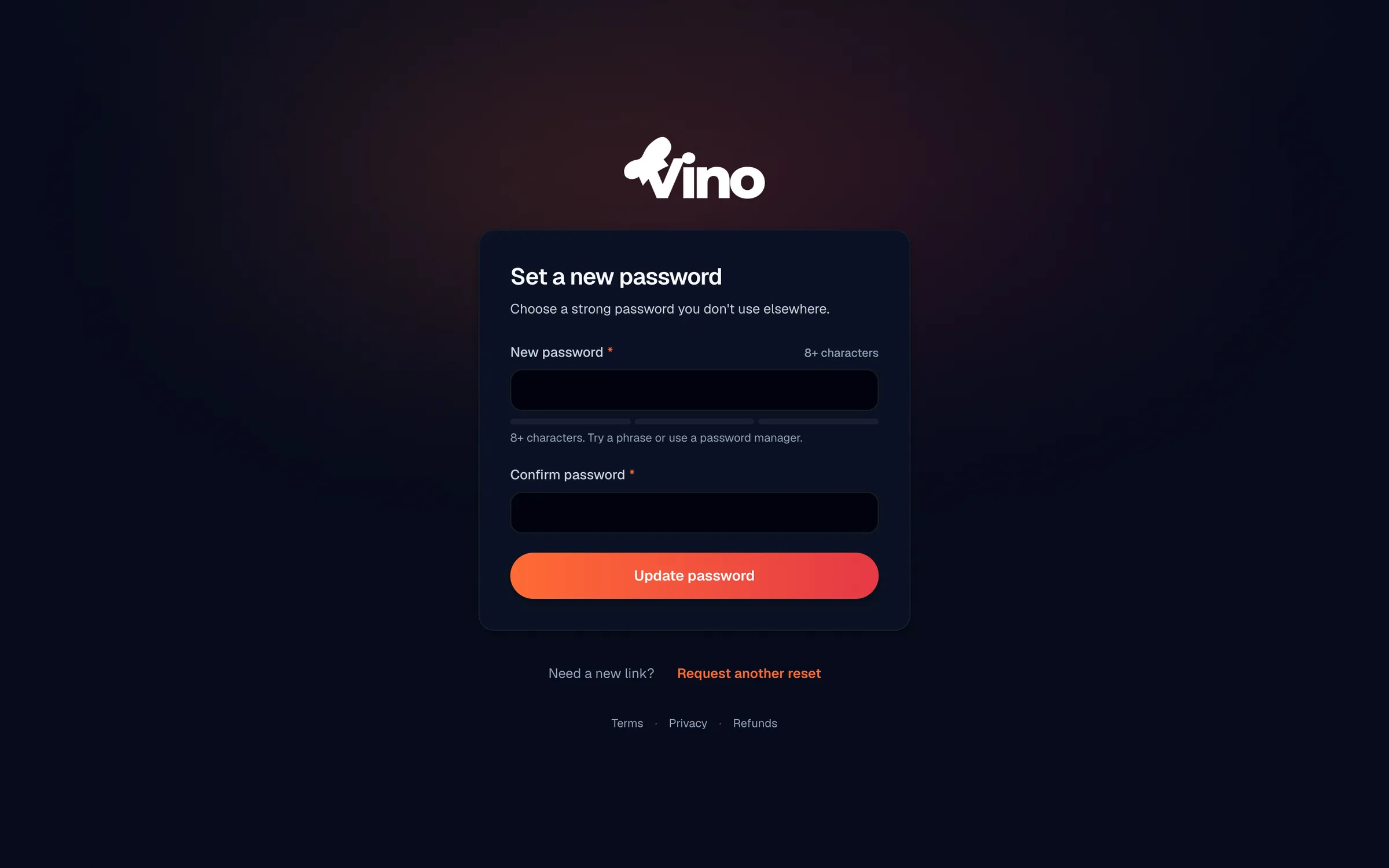
Reset links expire for security. If your link has expired or doesn't work, simply request a new one from the Forgot? link and use the freshest email.
Still stuck? Email us at info@vino-smart.com and we'll help you get into your account.