Fix Login and Account Access Issues
Can't log in to Vino? Reset a forgotten password, fix a missing reset email, and get back into your dashboard with these step-by-step checks.
Getting locked out of your dashboard is stressful, but it's almost always a quick fix. Vino's account access is built on a secure, standard authentication flow, so most login problems come down to the right email, a password reset, or confirming your email address. Work through the checks below in order.
Confirm your login details
Start at the login page and double-check the basics. Enter the exact email address you used when you created your account, and make sure Caps Lock is off when typing your password. Passwords are case-sensitive and must be at least 8 characters, so a single wrong character or an autofilled old password is a common cause. If you're unsure, try copying and pasting your password to rule out typos before assuming anything is wrong with your account.
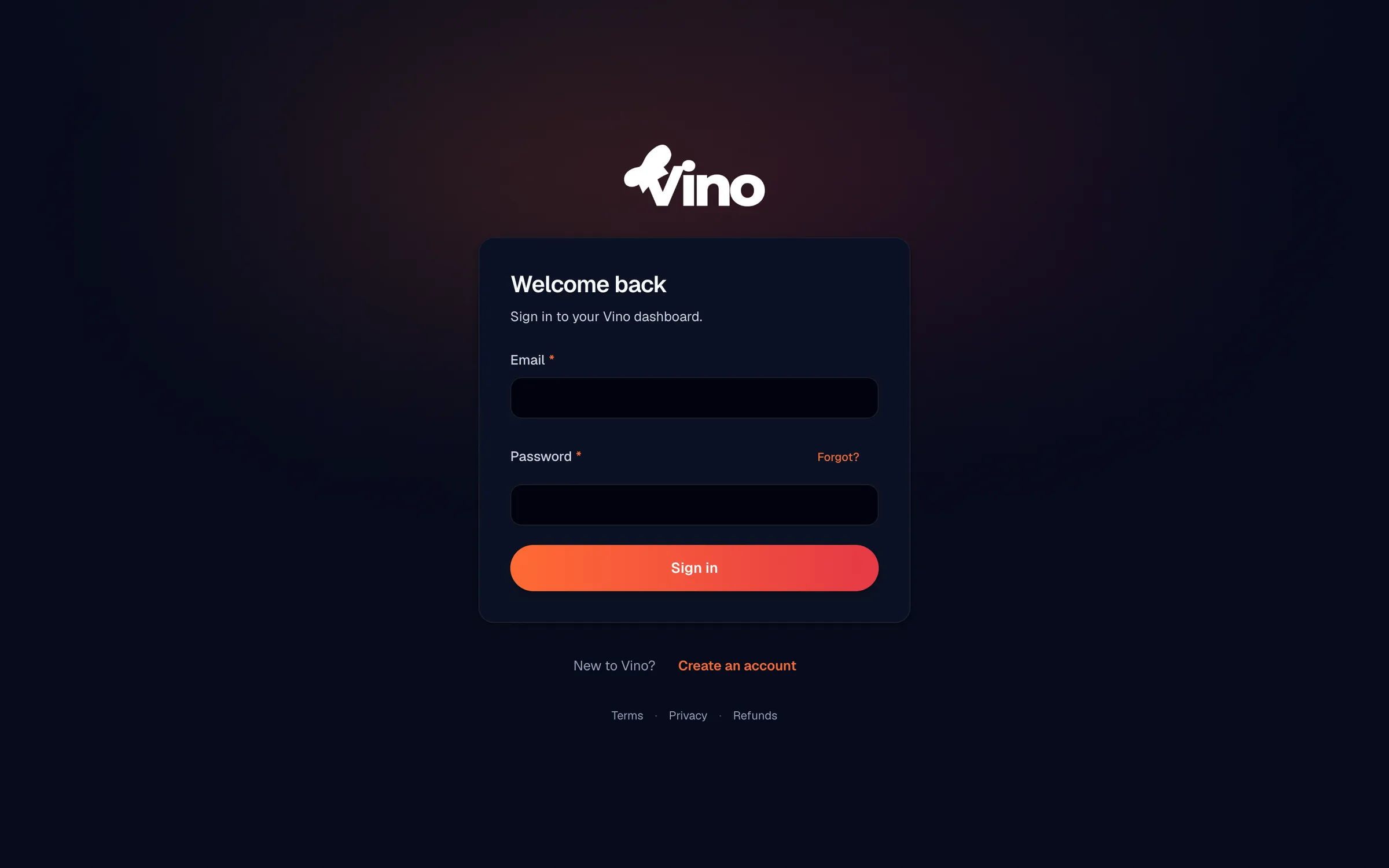
After you log back in, Vino returns you to the page you were trying to reach, so bookmarked deep links to your dashboard keep working.
Reset a forgotten password
If you can't remember your password, click the Forgot? link on the login form. Enter your registered email address on the password reset page, then open the reset link we email you. On the reset page, enter a new password of at least 8 characters (the strength bar guides you toward a strong one), confirm it, and click Update password. You'll be returned to the login page, where you can sign in with your new password.
The reset steps in order:
- On the login page, click Forgot?.
- Enter the email address you registered with.
- Open the reset email and click the reset link.
- Enter a new password (8+ characters) and confirm it.
- Click Update password.
- Sign in with your new password.
Reset links are single-use and expire after a while. If yours doesn't work or looks expired, request a fresh one and always use the most recent email.
Didn't receive the reset email?
If the reset email hasn't arrived, work through these checks:
- Check spam and promotions folders. Automated emails sometimes get filtered.
- Wait a few minutes. Delivery can take a moment depending on your email provider.
- Confirm the email address. Make sure you entered the exact address you registered with, with no typos.
- Request another link. A new request invalidates older ones, so the newest email is the one to use.
For your security, Vino always shows the same confirmation message ("If an account exists for that email, a reset link is on its way") no matter what you enter. This protects your privacy by never revealing which email addresses have accounts. It also means a missing email often simply indicates a different address was used at signup, so try any other addresses you may have registered with.
Still can't log in after confirming email
If email confirmation is turned on for your account, you must click the confirmation link we sent before you can log in for the first time. Open that email, click the link to activate your account, and then return to the login page to sign in. Confirmation links are device-agnostic, so they work even if you open the email on a different device or email client than the one you signed up on.
Still stuck? Email us at info@vino-smart.com with the email address on your account and we'll help you get back in.